Start with one strong subject
Choose a hero product, a character, or a setting. Explain where the viewer should look before adding smaller details.
Bring two images together in a short AI video with MiniMax H3. Upload start and end frames, describe the motion, and generate for free without an account.
Write a prompt, choose a format, and your completed image or video will appear in this workspace.
A focused brief makes it easier to compare versions and decide what to improve next.
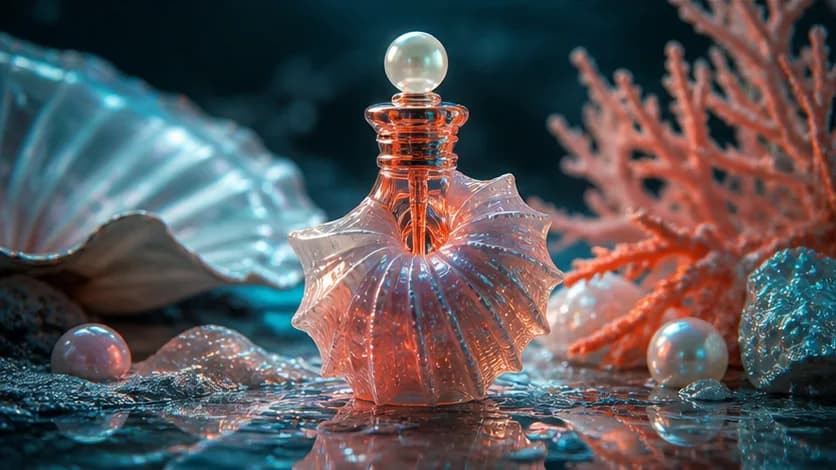
Choose a hero product, a character, or a setting. Explain where the viewer should look before adding smaller details.
For an edit, separate what should change from what should stay. For a video, describe one action and how the camera follows it.
Use vertical framing for a phone screen, a square for a feed, or widescreen for a presentation. Keep important details away from the edges.
Illustrative creative references, not guaranteed outputs from these models.
Use two selected images and a motion prompt to create a directed video transition between them.
Use one image to define the opening frame and another to define the ending frame of the generated video.
Describe the subject's movement, scene changes, transition speed, and camera direction between the two frames.
Select 16:9 for widescreen video, 9:16 for vertical content, or 1:1 for a square format.
Test different frame pairs, motion descriptions, and camera directions for free, then compare completed results in local history.
Use image-to-video generation for product reveals, before-and-after concepts, scene transitions, and social media content.
Create a transition from a product image to a feature detail, campaign scene, or finished composition.
Show a room, outfit, package, illustration, or design moving from one planned state to another.
Connect character poses, locations, or visual styles with prompt-guided movement for storyboards and creative treatments.
Create short reveal, transformation, and transition clips for social posts, campaign presentations, and pitch decks.
Upload a start frame and end frame, describe the transition between them, choose an aspect ratio, and generate the video. Finished clips appear in local video history.
Generate for free ↑Upload the opening image to Start Frame and the final image to End Frame. Both images are required for image-to-video generation.
Explain the action, transformation, pace, and camera movement between the frames, then choose an aspect ratio.
Submit the request, follow the queue status, preview the finished video with audio, and download the result.
It uses MiniMax H3 to create a short video from two still images and your motion prompt: one image sets the start and the other sets the ending.
This workflow needs exactly two. The Start Frame establishes the opening image and the End Frame establishes the intended ending, so one upload is not enough.
Pick two images with a clear relationship, such as a product before and after a reveal or a character before and after an action. Use the prompt to describe the bridge.
Focus on the change between the frames: name the subject, explain what shifts, set the pace, and add camera direction if it matters. Keep the request to one transition.
No. This is an AI video generator: MiniMax H3 creates new movement and visual change between your supplied images rather than simply playing stills in sequence.
Free access is subject to service availability, queue capacity and content rules. Video results are for evaluation, not commercial use. Pixverse AI is an independent service and is not affiliated with pixverse.ai, PixVerse, OpenAI or MiniMax.
From a first idea to an image worth saving or a scene worth watching. Choose your starting point and create with Pixverse AI.
Create images or edit a reference with ChatGPT Images 2.5 on Pixverse AI. Explore product visuals, posters and realistic scenes for free, with no signup.
Generate for free ↗Free MiniMax H3 AI Video GeneratorTry MiniMax H3 for free on Pixverse AI. Turn a prompt or a start-and-end frame pair into a short video, then preview and download it without signing up.
Generate for free ↗Free Image to Video AI GeneratorBring two images together in a short AI video with MiniMax H3. Upload start and end frames, describe the motion, and generate for free without an account.
Generate for free ↗Free Text to Video AI GeneratorTurn your words into a short AI video for free with MiniMax H3. Describe a subject, action and camera movement; no image upload or signup is required.
Generate for free ↗
A practical framework for turning a short thought into a visual brief with subject, scene, light, lens, and intent.
Read article
Treat your prompt like a compact creative brief to gain more control over text, layout, materials, and iterations.
Read article
Create persuasive product scenes with credible materials, scale, shadows, reflections, and brand-safe composition.
Read article